

Most form builders collect data. That's it. If you need to calculate a score, compute a ratio, or classify a response based on what someone entered, you're writing backend code or wiring up a webhook.
Computed fields change this. A form with computed fields doesn't just collect inputs. It processes them in real time and shows the result before the user leaves the page.
What computed fields actually do
A computed field takes values from other fields, runs an expression, and displays the result. The computation happens client-side as the user fills out the form. No page reloads, no server calls.
Three categories cover most use cases:
- Weighted scores — combine multiple inputs into a single number. Satisfaction score times a weight, plus a bonus for a positive recommendation.
- Boolean outcomes — evaluate whether conditions are met. Engaged or not. Eligible or not. Approved or rejected.
- Formatted outputs — display results with the right precision. Whole numbers, percentages, currency.
Traditional form builders can't do any of this natively. The form collects the data, and you process it somewhere else. With computed fields, the processing is part of the form itself.
How Formidable handles computed fields
In Formidable, you describe the calculation in plain language. The AI generates a form specification with computed field expressions that evaluate as the user types.
Here's what that looks like: you describe an employee satisfaction survey where an engagement score is calculated from satisfaction rating and recommendation status.
The AI generates the complete form with all input fields, plus two computed outputs:
- Engagement Score —
(satisfactionScore * 10) + (if wouldRecommend then 15 else 0), displayed as a whole number - Engaged —
satisfactionScore >= 7 and wouldRecommend, displayed as a boolean
No formula editor. No expression builder UI. One prompt, two computed fields, working instantly.
The form in action
The generated survey collects eight fields: name, department, experience level, job role, satisfaction score (1-10), years at company, a recommendation toggle, and optional feedback.
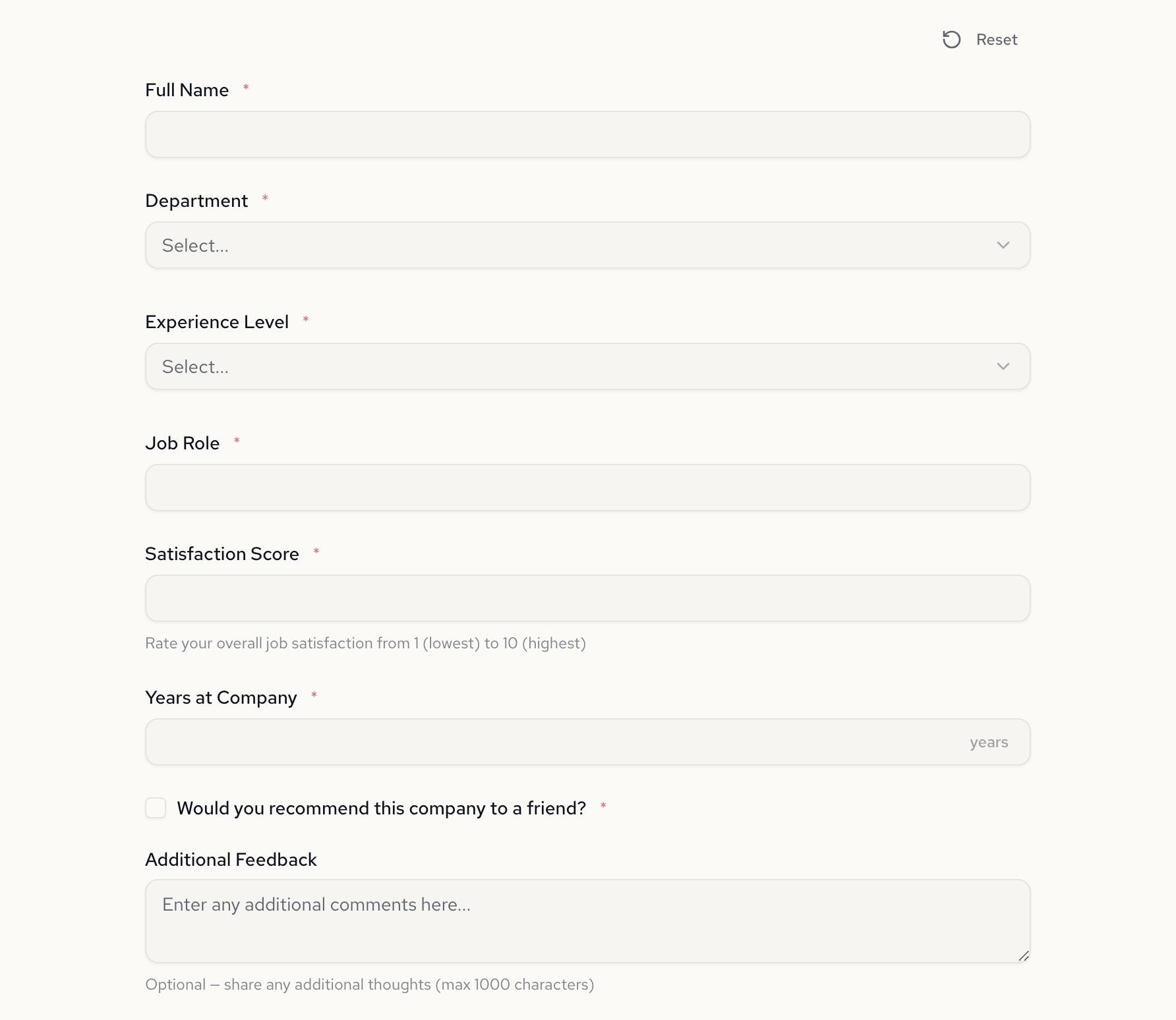
The computed fields aren't shown on the input form itself. In the live published form, computed values appear after submission. (In the builder's preview mode, they update in real time as you type.)
A highly engaged employee
Alice Chen: Senior Engineer, satisfaction score of 9, recommends the company. After submission, the computed values appear immediately.
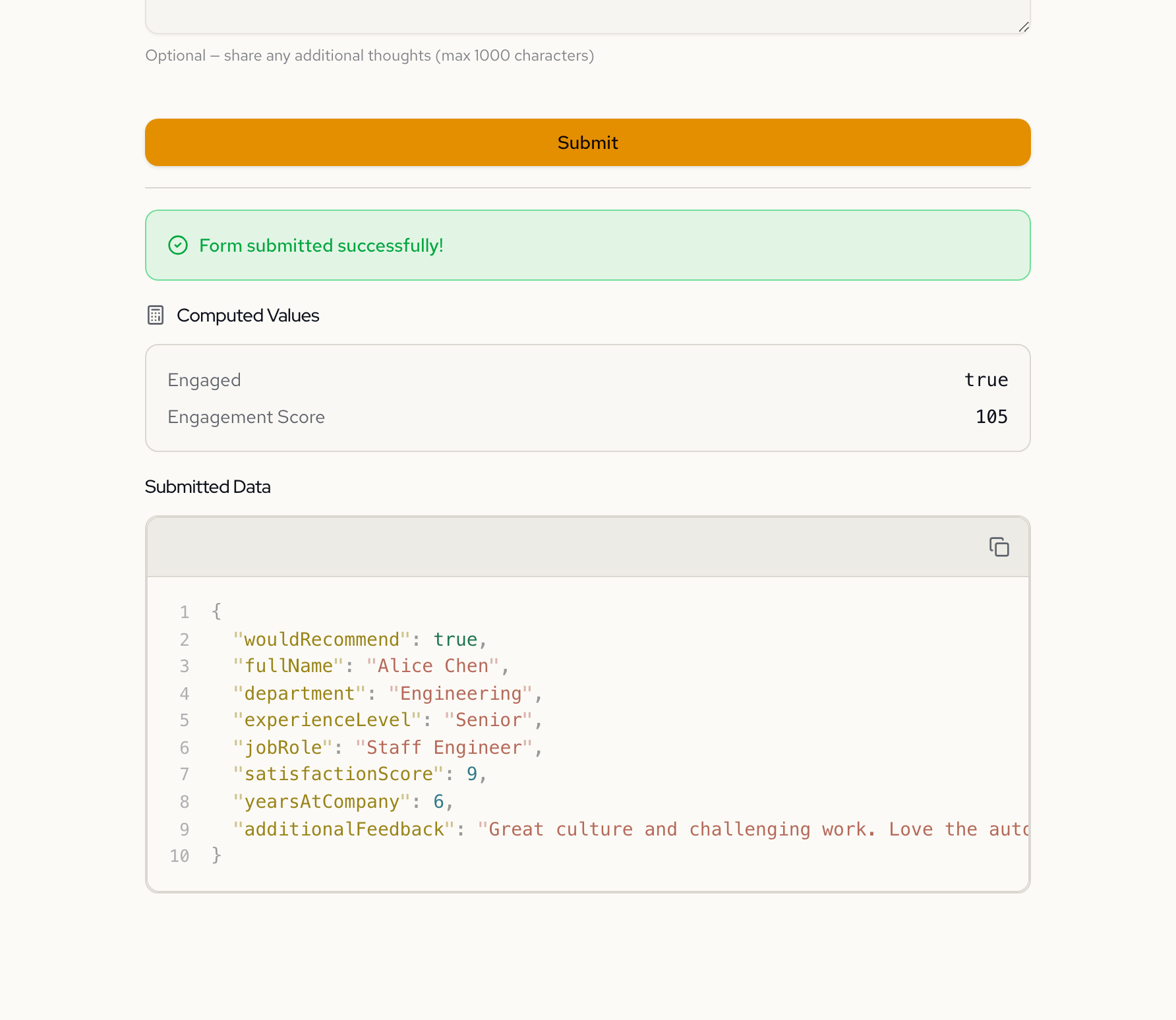
Engagement Score: 105. The formula: (9 × 10) + 15 = 105. The recommendation bonus adds 15 points. Engaged: true, because both conditions are met (score >= 7 and recommends).
A dissatisfied employee
Hiro Tanaka: Finance Director, satisfaction score of 4. Same form, different inputs, different computed result.
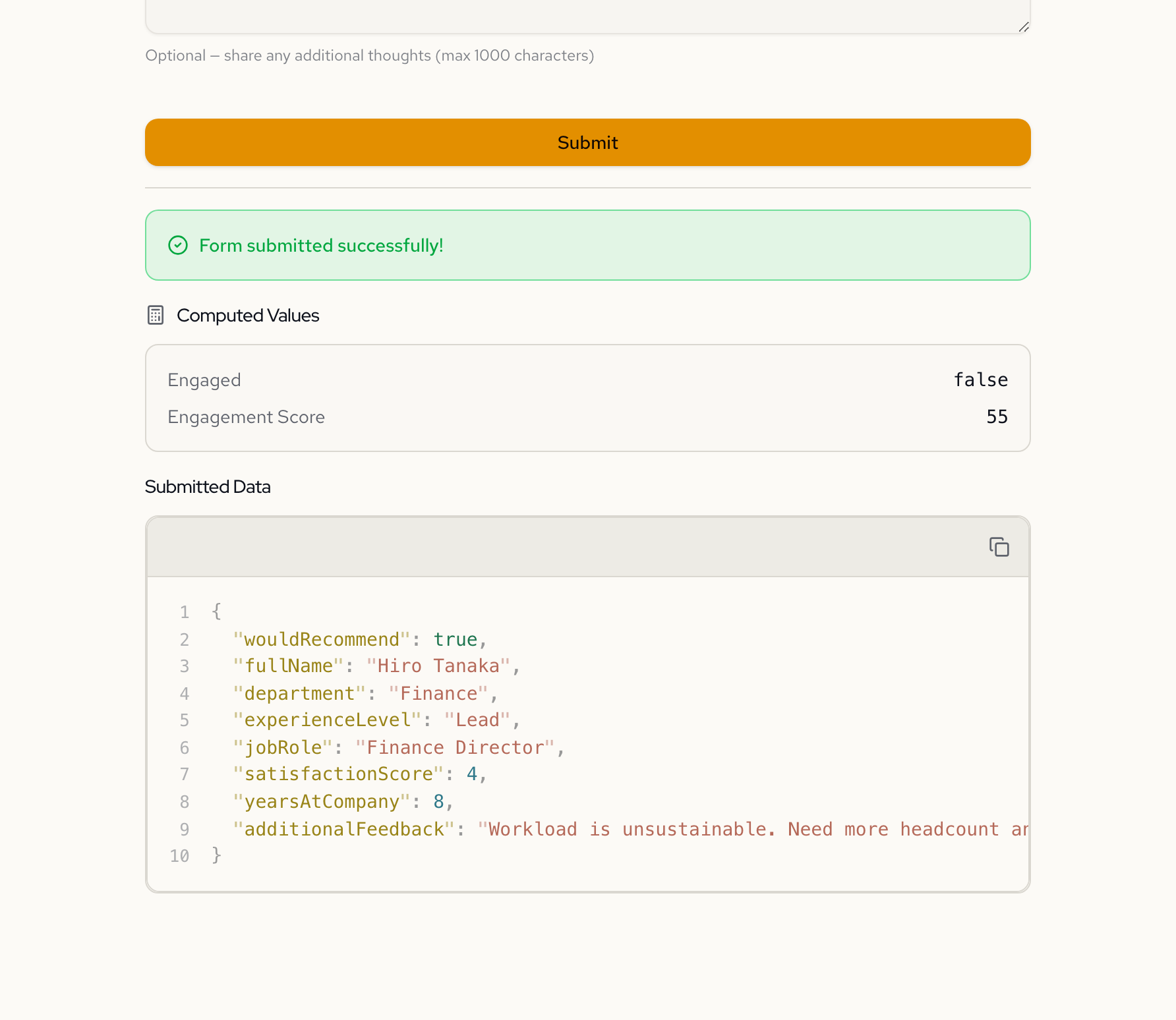
Engagement Score: 55. Engaged: false. The score alone disqualifies engagement regardless of the recommendation toggle. The form evaluates the same expressions and produces a different classification.
Two submissions. Same form. The computed fields adapt to the data.
What the AI generated
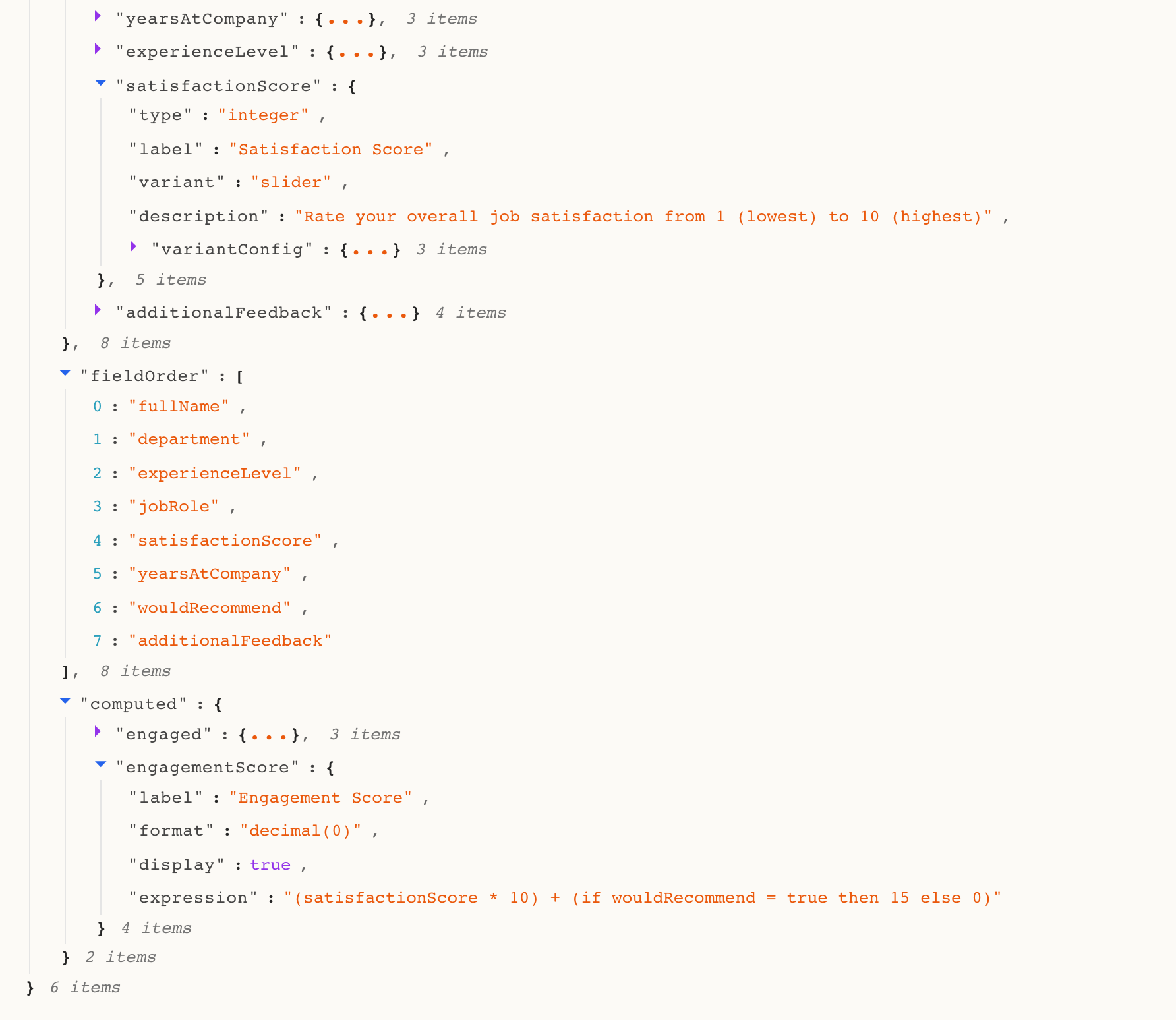
Under the hood, the computed fields are expressions in the form specification. Here's what the AI produced for this survey:
{
  "computed": {
    "engaged": {
      "label": "Engaged",
      "display": true,
      "expression": "satisfactionScore >= 7 and wouldRecommend = true"
    },
    "engagementScore": {
      "label": "Engagement Score",
      "format": "decimal(0)",
      "display": true,
      "expression": "(satisfactionScore * 10) + (if wouldRecommend = true then 15 else 0)"
    }
  }
}
Each computed field has a label, a display flag, an optional format, and an expression. The format: "decimal(0)" tells the renderer to show a whole number. The expressions reference input field names directly.
The form engine evaluates these expressions on every input change. The result updates in real time during preview, and appears in the submission output after the form is submitted.
See computed fields in other forms
The satisfaction survey is a straightforward example. Computed fields get more interesting when combined with conditional logic and approval rules:
- AI Loan Application — computes a debt-to-income ratio from monthly debt and annual income, then uses the result in an auto-qualification rule
- Patient Intake Validation — computes age-based risk flags that control which screening sections appear
- Insurance Eligibility — computes risk points from multiple factors (driving record, flood zone, smoking status), classifies into risk tiers, and auto-approves or rejects based on the tier
Each of these forms calculates outputs from inputs and uses those outputs to drive further logic. That's what separates a form with computed fields from a static data collection tool.
Coming soon: computed outputs via API
We're building a submission API that returns computed outputs alongside validation results. The same expressions that power the form preview will be available as a REST endpoint:
curl -X POST https://api.formidable.software/f/emp-satisfaction/submit \
  -H "Authorization: Bearer sk_live_..." \
  -d '{
    "fullName": "Alice Chen",
    "department": "Engineering",
    "experienceLevel": "Senior",
    "jobRole": "Staff Engineer",
    "satisfactionScore": 9,
    "yearsAtCompany": 6,
    "wouldRecommend": true
  }'
{
  "valid": true,
  "computed": {
    "engagementScore": 105,
    "engaged": true
  }
}
No backend code. No formula logic duplicated in your server. Publish the form, hit the endpoint, get computed results back. The spec is the single source of truth.
This is actively in development. If you'd use computed outputs via API, we'd like to hear about your use case at hello@formidable.software.
Traditional form builder vs. Formidable
In a traditional form builder, the satisfaction survey above would require:
- Building the 8 input fields in a drag-and-drop editor
- Realizing the form builder has no computed field support
- Setting up a webhook to a backend service
- Writing server-side code to calculate the engagement score
- Writing more code to classify engaged vs. not engaged
- Deploying and maintaining that backend
- Handling the round-trip delay (user submits, waits for webhook response)
That's a form builder plus a backend service for two calculations.
With Formidable, you write one prompt:
"Add two computed fields: Engagement Score = (satisfactionScore × 10) + (if wouldRecommend then 15 else 0). Engaged = satisfactionScore >= 7 and wouldRecommend."
The AI generates the expressions, the form evaluates them in real time, and the submission includes the computed results. Zero backend code. Zero round-trip delay.
FAQ
Can computed fields reference other computed fields?
Yes. A computed field's expression can reference other computed fields. For example, you could compute a raw score, then compute a tier classification based on that score. The engine resolves dependencies in the correct order.
What number formats are supported?
Computed fields support decimal(n) for precision control (e.g., decimal(0) for whole numbers, decimal(2) for two decimal places), percent for percentage formatting, and currency for monetary values. The format is purely cosmetic and doesn't affect the underlying calculation.
Can I show or hide fields based on a computed value?
Yes. Conditional visibility expressions can reference computed fields. If you compute a risk score, you can show a "high risk details" section only when that score exceeds a threshold. See the insurance eligibility example for this pattern.
Do computed fields work in the form preview?
Yes. Computed field expressions evaluate in real time as you fill out the form preview. You see the results update with every keystroke. After submission, the final computed values appear in the submission output.
Try building one
Paste this into Formidable and watch the computed fields generate:
Create an employee satisfaction survey. Collect name, department, experience level, job role, satisfaction score (1-10), years at company, would recommend (boolean), and optional feedback. Add computed fields: Engagement Score = (satisfactionScore × 10) + (if wouldRecommend then 15 else 0), displayed as a whole number. Engaged = satisfactionScore >= 7 and wouldRecommend, displayed as a badge.
Fill out the form, submit, and see the engagement score calculated from your inputs. That's a scoring form, described in one message, computing results in seconds.
Sign up free and build your first form with calculations.
Learn more about calculated fields, conditional logic, and approval workflows in Formidable.