

Most form builders produce flat lists of fields. Name, date of birth, insurance number, submit. They collect data, but they don't validate it. They don't adapt to the patient. They don't compute anything. They don't flag risk.
Here are seven validation rules your intake form should have — and how we built all of them in a single conversation with Formidable.
1. Age-conditional field visibility
A 12-year-old and a 72-year-old shouldn't see the same intake form. But most form builders show every field to every patient — or force you to build separate forms for each age group.
Formidable uses conditional visibility rules to show and hide fields based on the patient's age. Enter 12, and guardian fields appear. Enter 72, and fall risk screening appears. The form adapts in real time.
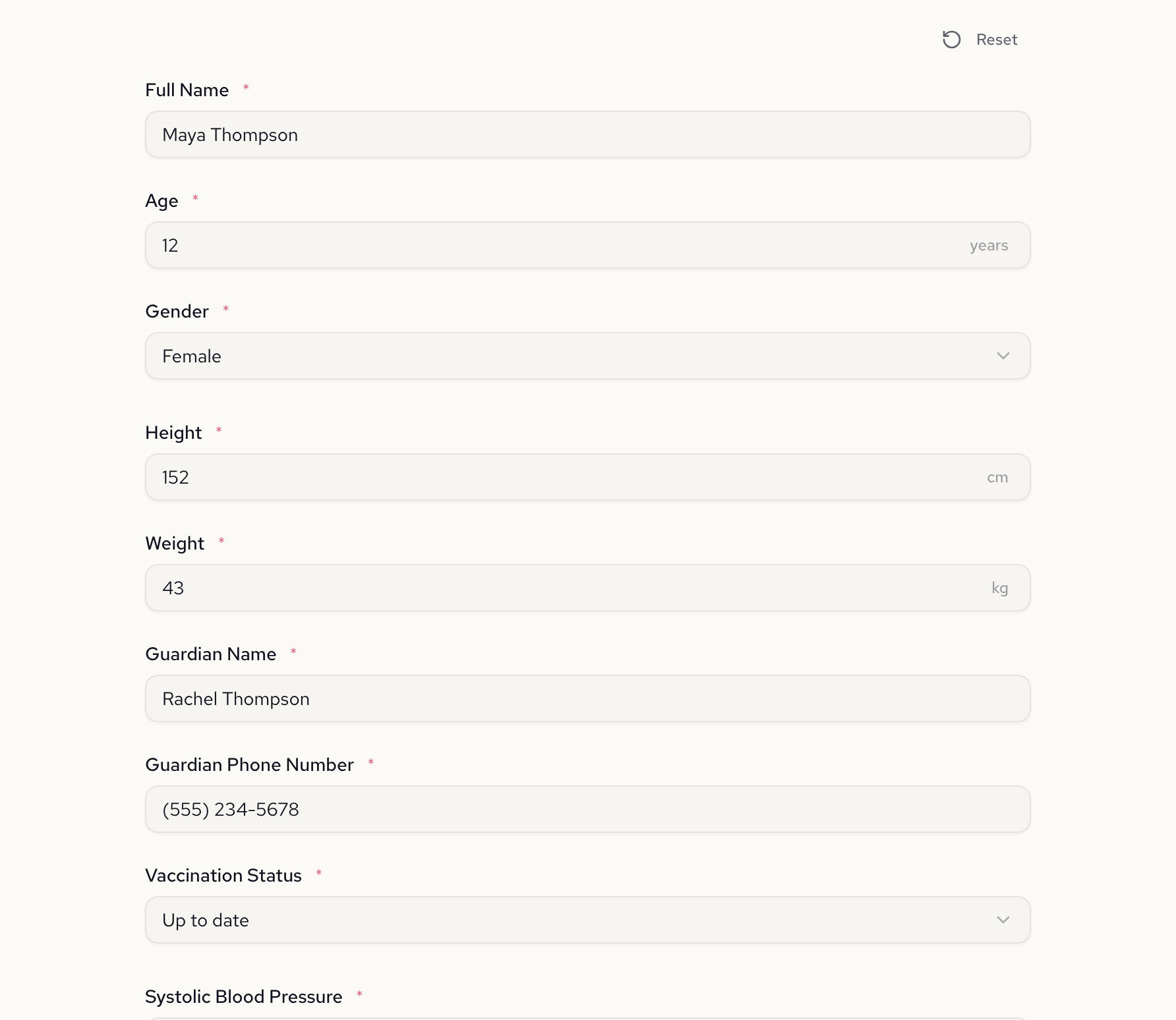
No duplicate forms. No branching pages. Each field has its own visibility rule.
2. Guardian information for minors
When age is under 18, the form requires a guardian name and phone number. These fields don't exist for adult patients — they appear only when needed, and they're marked required when they do.
This is the difference between "optional fields with grey placeholders" and true conditional requirements. The guardian section is invisible until it's relevant, then mandatory when it appears.
3. Fall risk screening for seniors
For patients 65 and older, the form surfaces geriatric-specific screening: fall history, mobility aid use, and an emergency contact. A 35-year-old never sees these fields. A 72-year-old can't skip them.
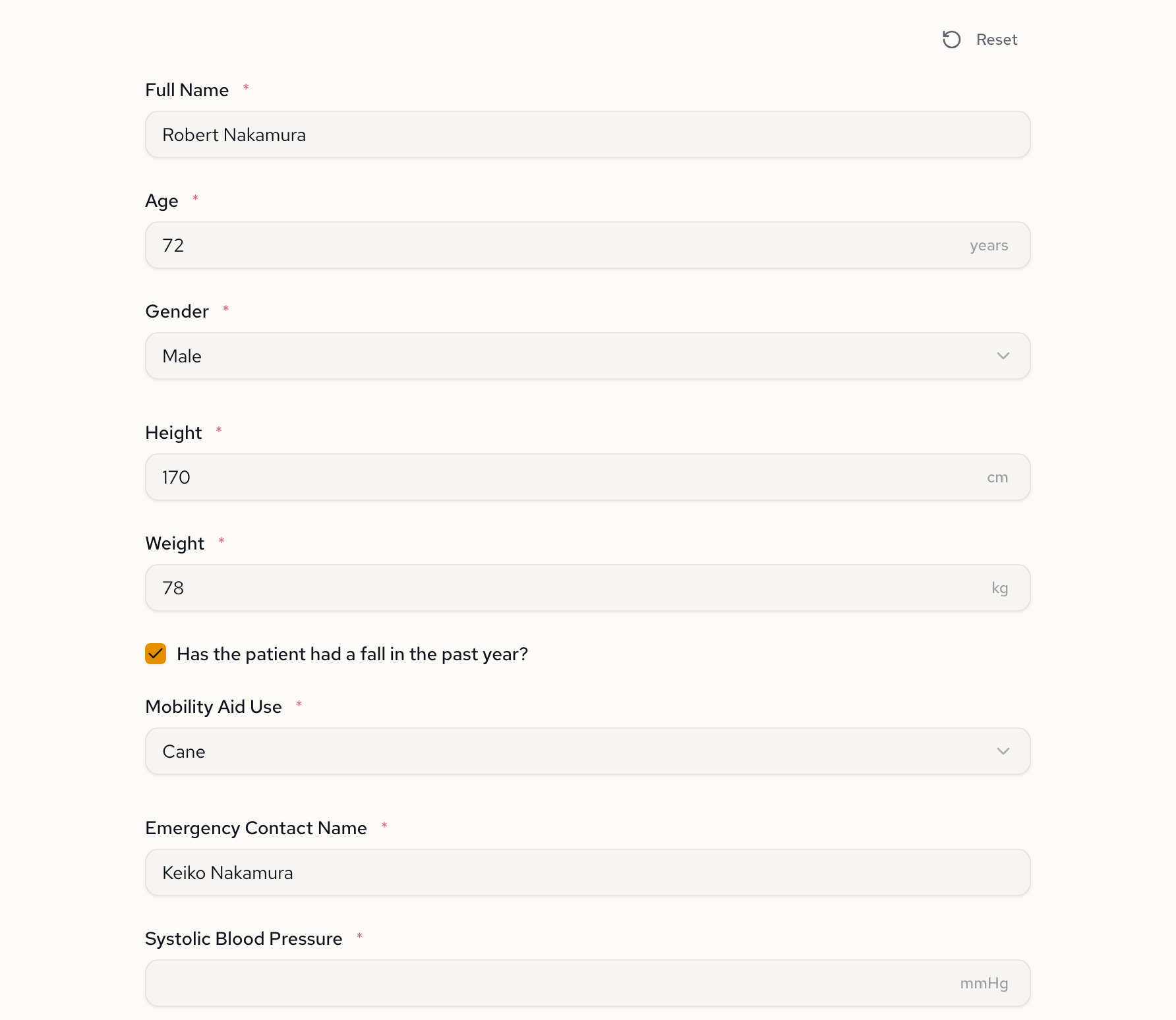
Watch the form adapt as the patient's age changes — pediatric fields, adult fields, and geriatric fields swap in and out instantly:
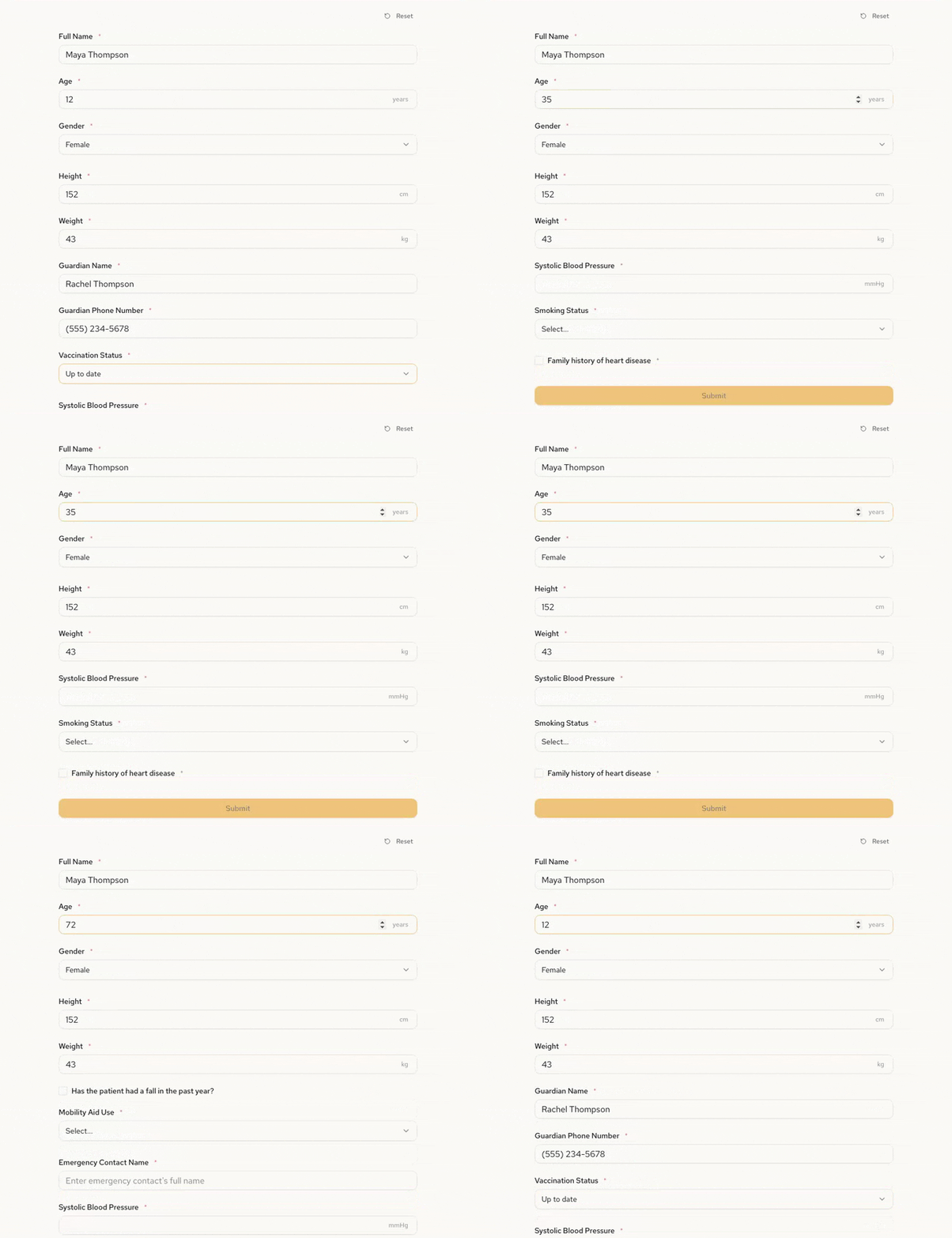
4. Vaccination status tracking for pediatric patients
Minors get a vaccination status field with three options: Up to date, Partial, or Not vaccinated. This isn't just a checkbox — it's a required selection that only appears for patients under 18.
Combined with guardian information, this creates a pediatric screening section that appears and disappears as a unit. The form stays clean for every age group.
5. Computed BMI from height and weight
The form collects height in centimeters and weight in kilograms, then computes BMI automatically using the standard formula: weight / (height/100)². No manual calculation. No separate calculator tool. The value appears in the submission results alongside the cardiovascular risk assessment.
Here's what that looks like after submitting the form for a patient with BMI over 30, elevated blood pressure, and multiple risk factors:
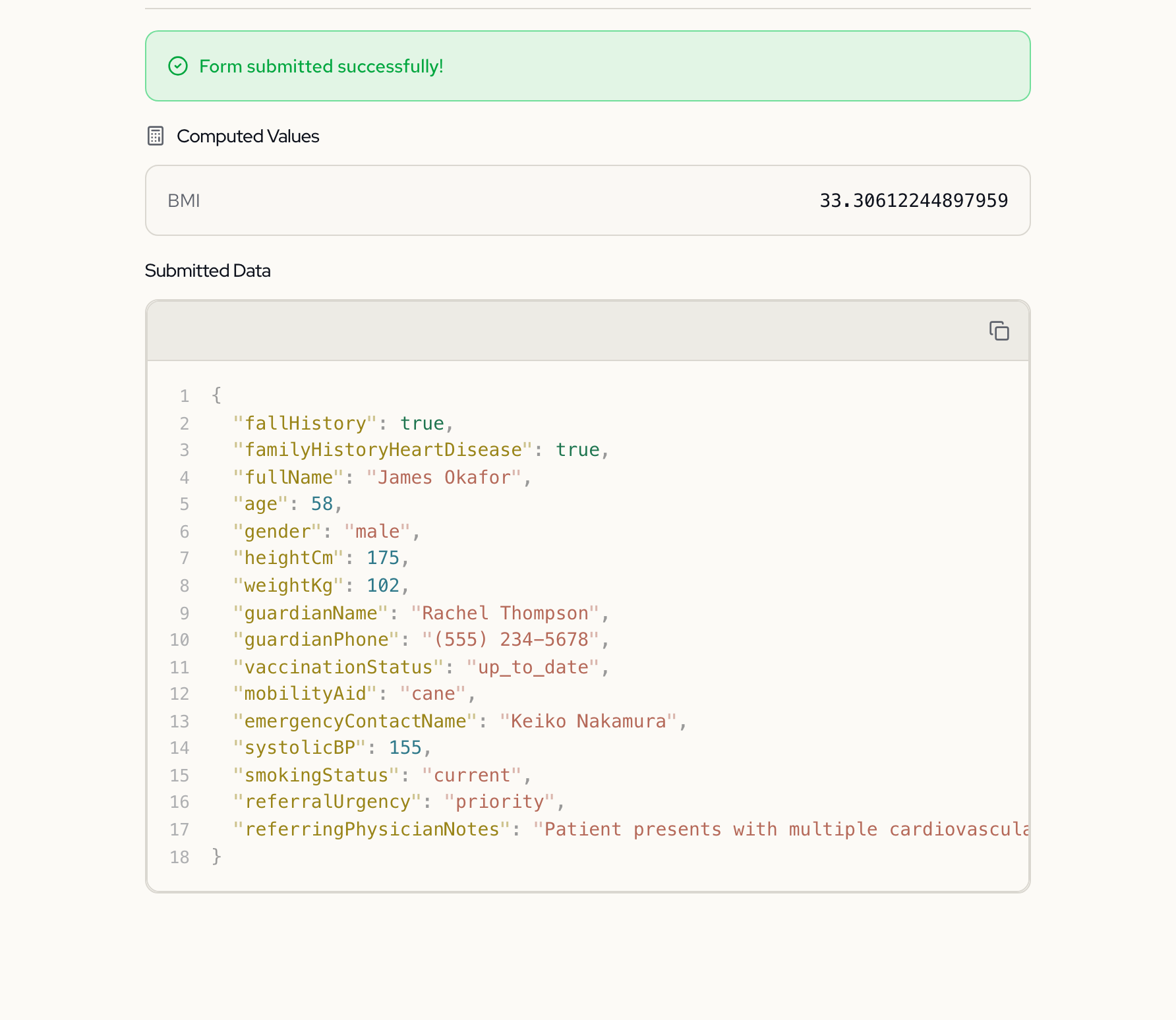
The AI writes the expression. The form engine evaluates it at submission time.
6. Cardiovascular risk flagging
The form asks three cardiovascular screening questions: systolic blood pressure, smoking status, and family history of heart disease. Behind the scenes, a computed boolean field evaluates whether the patient is high risk — flagged if any of: BMI is 30 or above, systolic BP is 140 or above, or the patient is a current smoker with family history.
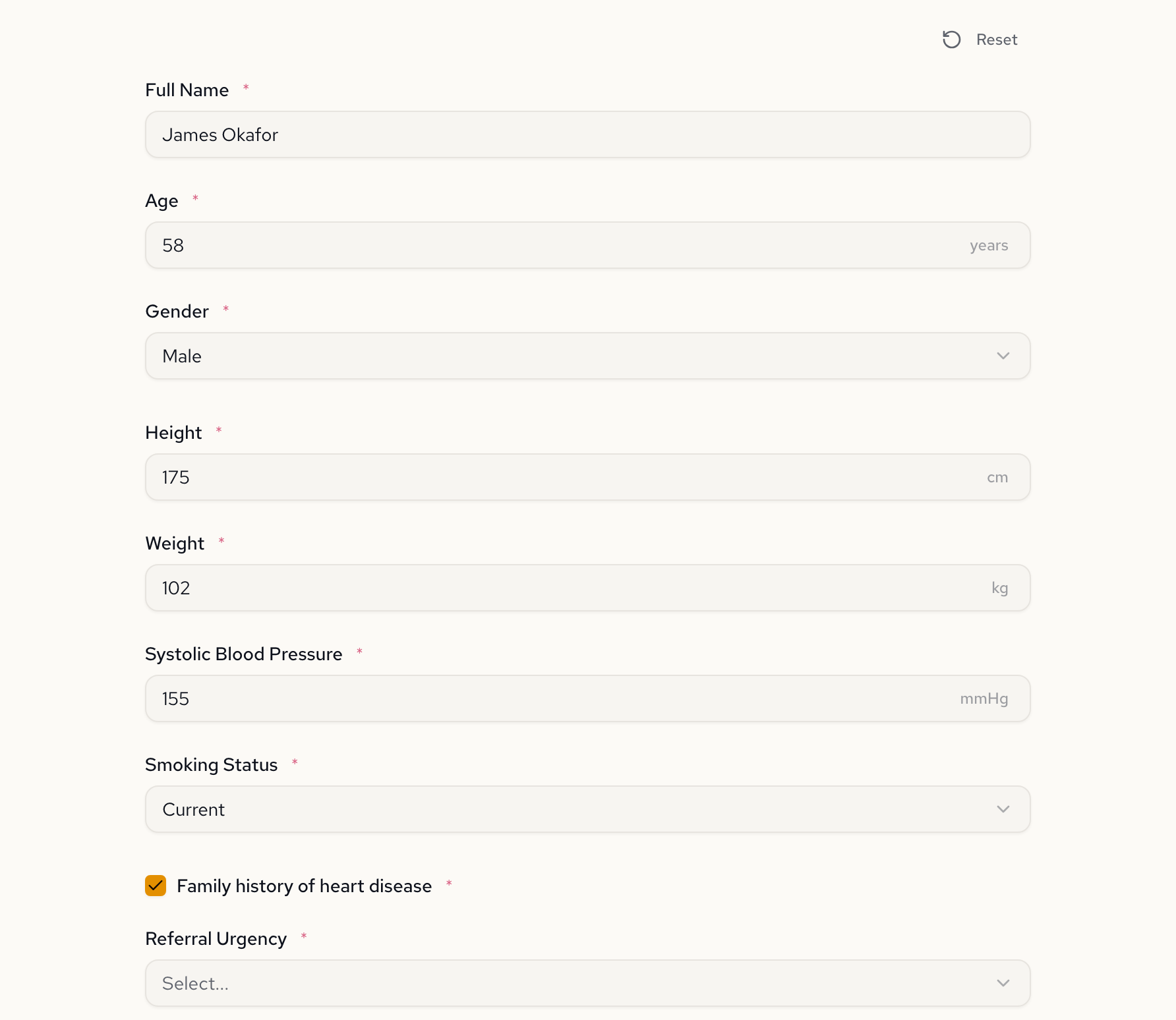
This isn't a score the clinician calculates after the fact. It's evaluated as the patient fills out the form. The flag is set before anyone clicks Submit.
7. Conditional specialist referral
When the cardiovascular risk flag is triggered, the form reveals a specialist referral section: referral urgency (Routine, Priority, Urgent) and a text area for referring physician notes. If the patient isn't high risk, this section doesn't exist.
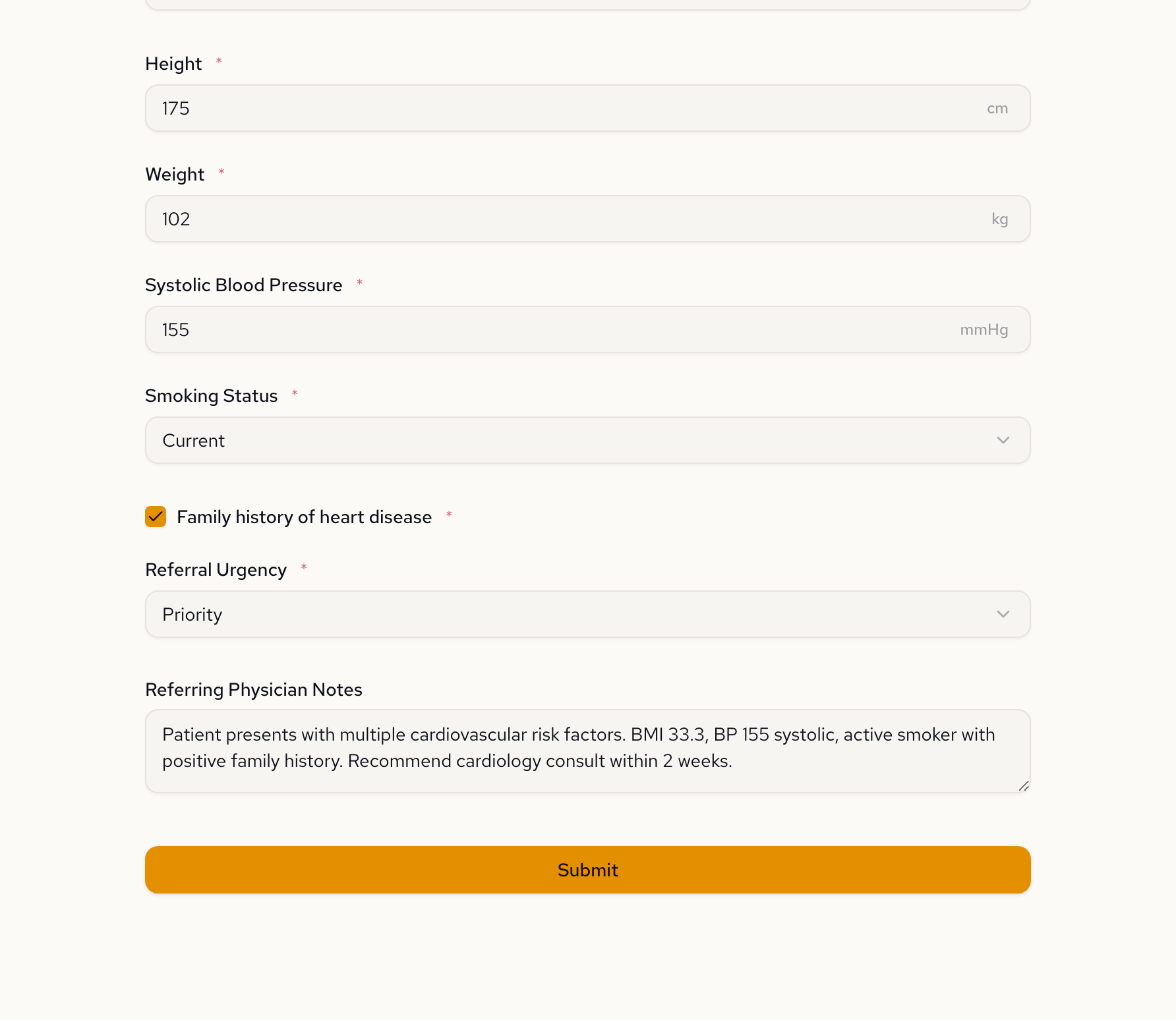
This is conditional logic chained to a computed field. The BMI feeds the risk flag. The risk flag controls referral visibility. The referral urgency becomes required. Three layers of logic, zero lines of hand-written code.
See the logic as a flowchart
The Flowchart tab visualizes the entire decision tree — age-based branching on the left, cardiovascular risk assessment on the right, and the specialist referral path when risk is flagged.
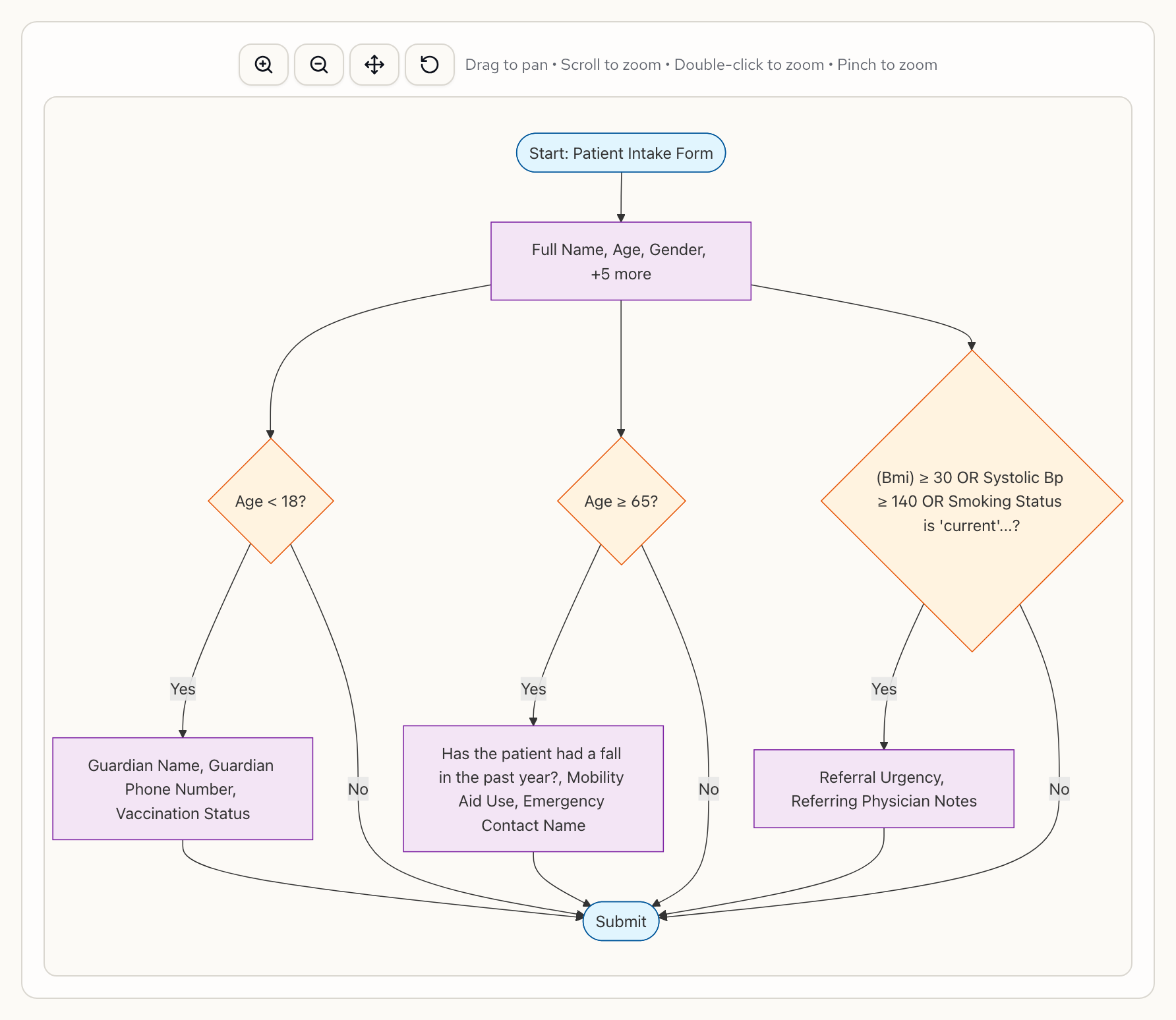
This is generated automatically from the form specification. Change a rule and the flowchart updates to match.
What the AI generated
The full form specification includes 15+ fields with conditional visibility rules, computed expressions, and validation constraints. Here's what that looks like under the hood.
Each age-conditional field has a visibleWhen expression. Here's fallHistory — it only appears for patients 65 and older:
{
  "fallHistory": {
    "type": "boolean",
    "label": "Has the patient had a fall in the past year?",
    "visibleWhen": "age >= 65"
  },
  "guardianName": {
    "type": "text",
    "label": "Guardian Name",
    "placeholder": "Enter guardian's full name",
    "visibleWhen": "age < 18",
    "requiredWhen": "age < 18"
  }
}
The computed section is where the clinical intelligence lives. The BMI formula calculates from height and weight. The cardiovascular risk flag evaluates a boolean expression combining BMI, blood pressure, smoking status, and family history:
{
  "bmi": {
    "label": "BMI",
    "format": "decimal(1)",
    "display": true,
    "expression": "weightKg / ((heightCm / 100) ** 2)"
  },
  "highCvRisk": {
    "display": false,
    "expression": "computed.bmi >= 30 or systolicBP >= 140 or (smokingStatus = \"current\" and familyHistoryHeartDisease = true)"
  }
}
Each visibleWhen rule is an expression evaluated in real time. Each computed expression derives a value from other fields. The risk flag chains three conditions into a single boolean. All generated from one prompt.
One conversation. Seven rules.
In most form builders, setting up age-conditional fields, computed BMI, risk flagging, and conditional referral routing means hours of configuration across multiple screens — if it's supported at all. In Formidable, one conversation produced a form that adapts to the patient, computes risk in real time, and surfaces referrals when they're needed.
Try it yourself
Paste this into Formidable and see what comes back:
Create a patient intake form for a medical clinic. Collect full name, age, gender, height (cm), and weight (kg). If age is under 18, show guardian name, guardian phone, and vaccination status. If age is 65 or older, show fall history, mobility aid use, and emergency contact. Compute BMI from height and weight. Add cardiovascular screening with blood pressure, smoking status, and family history. Flag high risk if BMI >= 30, BP >= 140, or current smoker with family history. If high risk, show specialist referral with urgency level and physician notes.
Then look at the Flowchart tab. That's where it clicks.
Sign up free — go from requirements to working intake form in one conversation.
Learn more about conditional logic and calculated fields in Formidable.