
Forms that adapt
Field Visibility
Show or hide fields based on previous answers. Each field gets a visibility expression that evaluates in real time as the user types.
Conditional Requirements
Fields become required only when relevant. A contractor must enter a contract end date. A full-time employee must enter a salary. Hidden fields are excluded from validation.
Cascading Dependencies
One condition triggers another. A selection on page 1 controls which fields appear on page 3. Chain conditions as deep as needed.
How it works
Describe your conditional rules in one sentence. Get a form where fields appear and disappear automatically.
You describe it
Describe the form you want to build, including any calculations or scoring logic.
Create an employee onboarding form. Ask for name, email, and employment type (Full-time, Part-time, Contractor). If Full-time: show annual salary and benefits enrollment. If Contractor: show hourly rate and contract end date. If Part-time: show hourly rate and weekly hours.
You get this
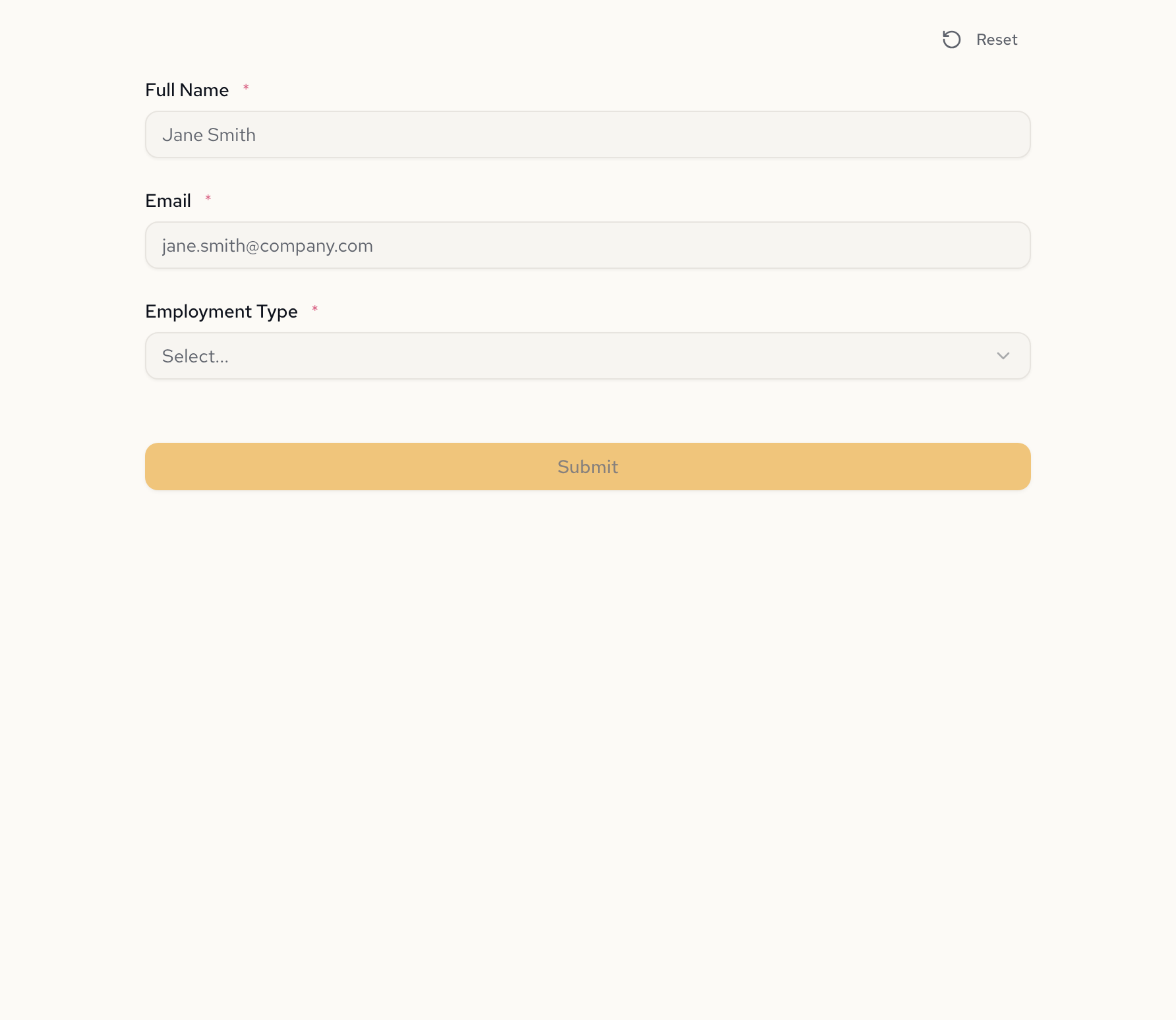
Same form, different paths
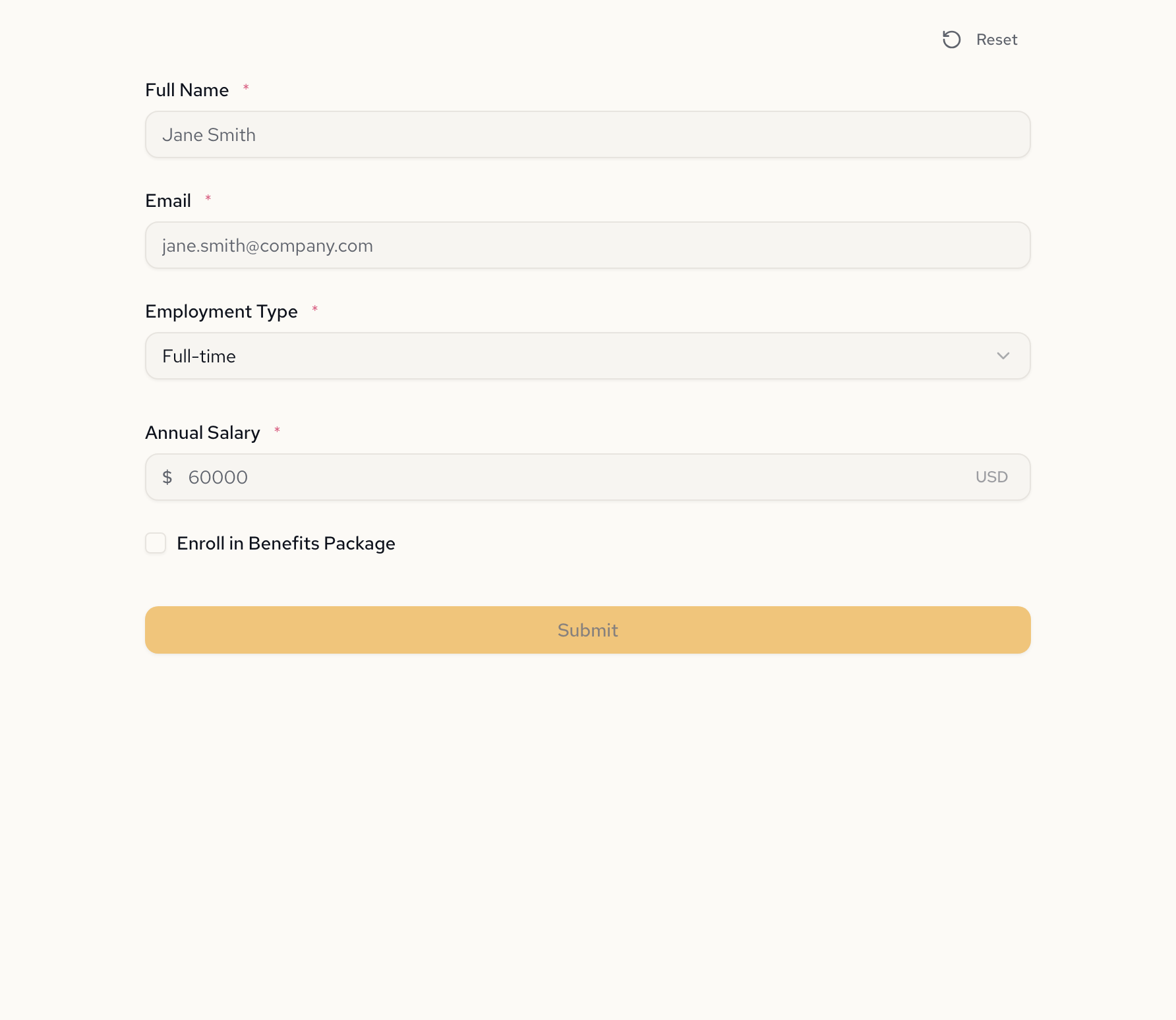
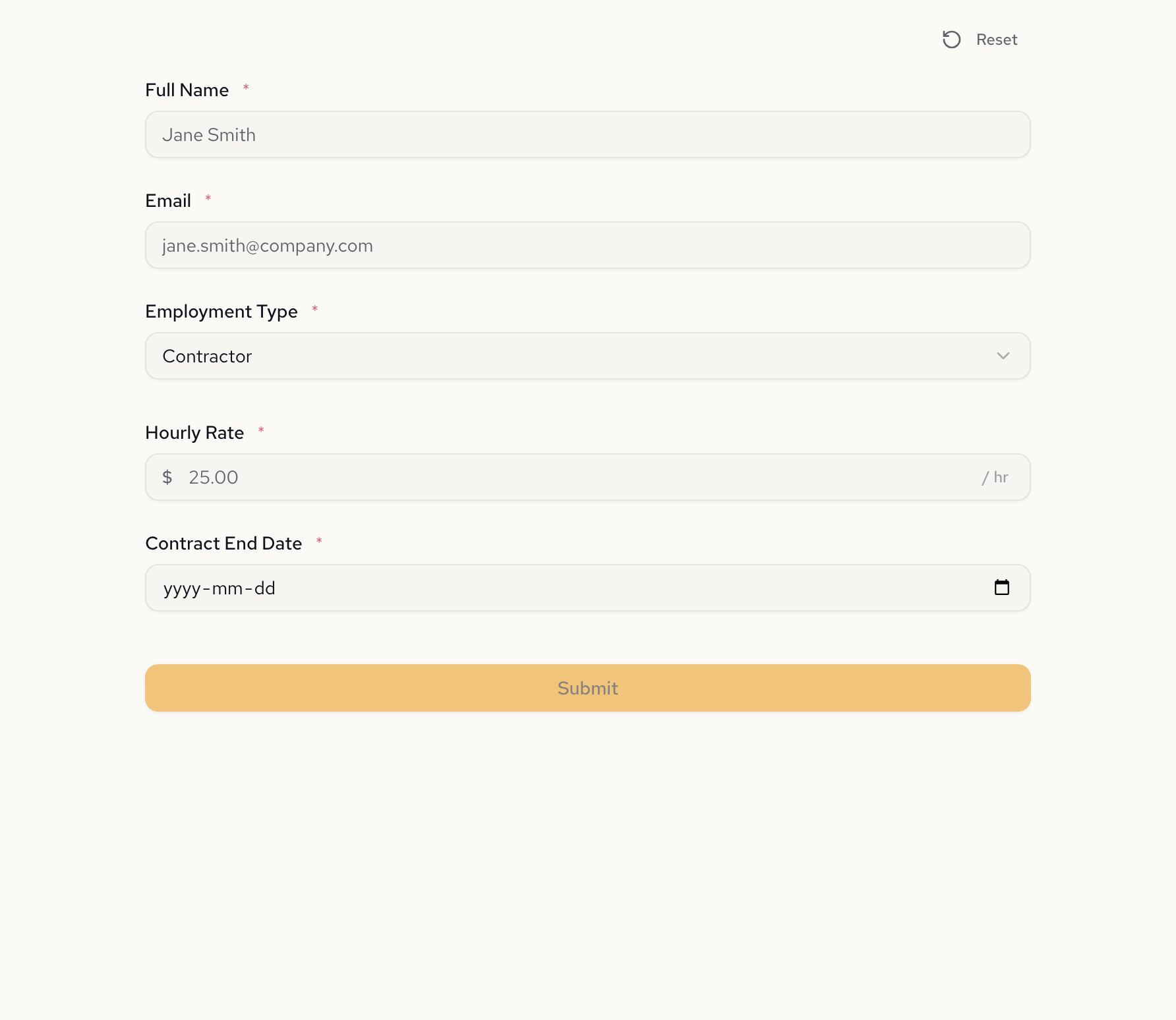
Select an employment type and the form reveals only the fields that matter. Hidden fields are excluded from validation automatically.
Full-time employee
Contractor
The visibility expressions
{
  "annualSalary": {
    "type": "number",
    "label": "Annual Salary",
    "prefix": "$",
    "suffix": "USD",
    "visibleWhen": "employmentType = \"full_time\"",
    "requiredWhen": "employmentType = \"full_time\""
  },
  "hourlyRate": {
    "type": "number",
    "label": "Hourly Rate",
    "prefix": "$",
    "suffix": "/ hr",
    "visibleWhen": "employmentType = \"contractor\" or employmentType = \"part_time\"",
    "requiredWhen": "employmentType = \"contractor\" or employmentType = \"part_time\""
  },
  "contractEndDate": {
    "type": "date",
    "label": "Contract End Date",
    "visibleWhen": "employmentType = \"contractor\"",
    "requiredWhen": "employmentType = \"contractor\""
  }
}
See it in action
Detailed showcases of forms built with Formidable.
Headless by design
Fetch the spec, render your own UI, validate server-side. Conditional visibility rules travel with the spec.
curl https://api.formidable.software/f/employee-onboarding \
  -H "Authorization: Bearer sk_live_..."
Response
{
  "meta": {
    "id": "employee-onboarding",
    "title": "Employee Onboarding"
  },
  "fields": {
    "annualSalary": {
      "type": "number",
      "label": "Annual Salary",
      "visibleWhen": "employmentType = \"full_time\"",
      "requiredWhen": "employmentType = \"full_time\""
    },
    "hourlyRate": {
      "type": "number",
      "label": "Hourly Rate",
      "visibleWhen": "employmentType = \"contractor\" or ..."
    }
  },
  "fieldOrder": ["fullName", "email", "employmentType", "..."]
}import { FormRenderer } from "@fogpipe/forma-react";
import type { ComponentMap } from "@fogpipe/forma-react";
const components: ComponentMap = {
text: TextInput,
email: EmailInput,
number: NumberInput,
select: SelectDropdown,
boolean: Checkbox,
date: DatePicker,
};
function OnboardingForm({ spec }) {
return (
<FormRenderer
spec={spec}
components={components}
onSubmit={(data) => {
// Only visible fields are included
console.log(data);
}}
/>
);
}Employee Onboarding
Conditional fields
Skip the rule builder
Traditional form builders make you click through dropdowns and nested panels. You can just say what you mean.
Frequently asked questions
Can I show fields based on multiple conditions?
Yes. Visibility expressions support and, or, and nested conditions. For example, a field can be visible when employmentType is contractor or part_time. You can combine as many conditions as needed in a single expression.
How does conditional logic work with required fields?
Every conditional field can have both a visibleWhen and a requiredWhen expression. A field can be visible but optional, or visible and required. When a field is hidden, it is automatically excluded from validation regardless of its requirement rule.
Does conditional logic work in multi-page forms?
Yes. Visibility expressions can reference fields from any page in the form. A selection on page 1 can control which fields appear on page 3. The form engine evaluates all expressions across all pages.
Can one conditional field control another?
Yes. A field's visibility can depend on another conditional field's value, or on a computed value. Chains can go as deep as needed. The engine resolves dependencies automatically.
Do I need to write any code to use conditional logic?
No. Describe your conditional rules in plain language and Formidable generates the visibility and requirement expressions. If you use the forma-react renderer, conditional fields show and hide automatically. If you build custom UI, the spec includes all expressions for your own implementation.
Build a form that adapts
“Create an employee onboarding form. Ask for name, email, and employment type (Full-time, Part-time, Contractor). If Full-time: show annual salary and benefits enrollment. If Contractor: show hourly rate and contract end date. If Part-time: show hourly rate and weekly hours.”
Free to start · No credit card required